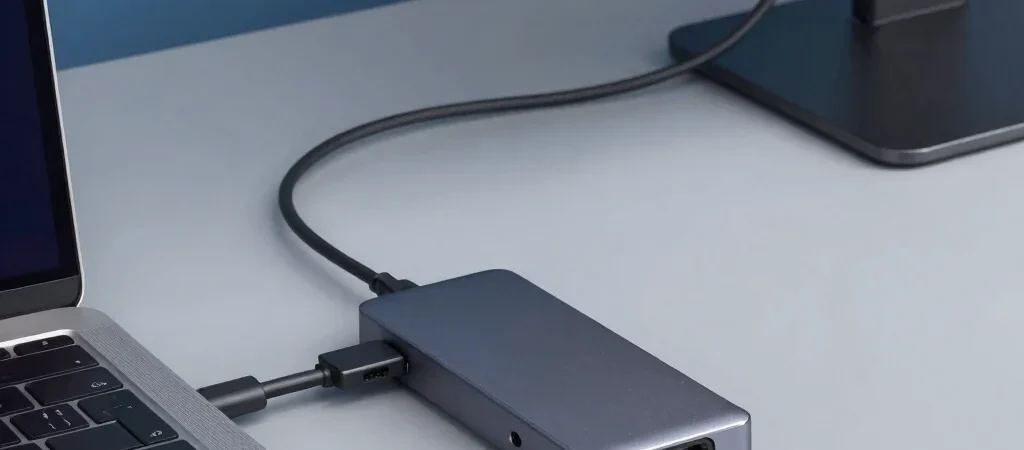
You connect a new dock, plug in a monitor, and get a blank screen—or discover that your laptop is charging far more slowly than expected. The USB-C connector looks standardized, but the capabilities behind that port can vary. Before choosing a dock, match its features to the specific laptop you use.
Start with the laptop port
Look up the laptop’s port specifications rather than relying on the shape of the connector. USB-C may support data and charging without supporting video output; other ports may support DisplayPort Alt Mode or a Thunderbolt standard. The laptop manufacturer’s support page or manual is usually the clearest place to confirm what the port can do.
Then check what the dock requires for the features you want. A dock’s display outputs, data speeds, and supported monitor combinations are separate details, not a single promise implied by the connector. If you need two external displays, check the dock’s supported resolution and refresh-rate combinations and whether your laptop can drive them.
Match charging to your day
Compare the dock’s power delivery with your laptop’s charging requirements. A dock that supplies less power than the laptop’s adapter may charge more slowly, especially during demanding work, while some docks require their own power adapter to provide full functionality. Confirm what is included in the box, too; a suitable cable or power supply may be sold separately.
Count the ports you will use
Make a quick inventory of your real desk setup: monitor connection, keyboard, mouse, external drive, wired network, and any card reader you use. A dock with many ports is not automatically a better fit if it lacks the one connection your monitor needs. Product listings and manufacturer specifications can help you compare these details before purchase; where we use affiliate links, they may earn dealcircuit.co a commission.
The safest choice is not necessarily the dock with the longest feature list. It is the one whose display support, power delivery, and ports match your particular laptop and desk. Verify both sides of that connection before treating a USB-C label as a compatibility guarantee.